
Settings: where everything lives
Settings holds your store-wide setup: your company details, how ASM prices shipments, your carrier accounts and your add-on features. This page lists every Settings group, what's in it, and how saving works.
Before you begin
Find Settings
- In the full admin: select Settings in the sidebar. A menu opens with the Settings groups.
- Inside the Shopify admin: there's no sidebar, so the groups show as a bar across the top of the Settings page.
The page heading shows the group you're on, with a small "Settings" label above it.
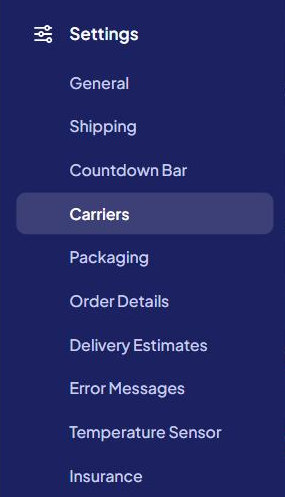
You only see the groups you use
Most groups belong to an add-on or a platform. A group only appears when your store has something in it, so your menu may be shorter than the list below. That's normal.
The groups
Listed in menu order.
General — always shown
- Your admin password, phone number and email address.
- Your origin (ship-from) address and country.
- The default weight for products that have no weight.
- The currency your store uses (Shopify and BigCommerce).
- See Set your origin address and default product weight.
Storefronts — older BigCommerce accounts with several channels
- Which BigCommerce channels ASM runs for. See BigCommerce: multiple storefronts and channels.
Shipping — always shown
- The switch that turns ASM on at checkout, residential/commercial detection, declared value, free-shipping options and more. See Global shipping settings explained.
Countdown Bar — Free Shipping Countdown add-on
- The "Spend $X more for free shipping" bar. See Free shipping countdown bar.
Carriers — always shown
- One card per carrier: UPS, FedEx and USPS for every store, plus any carrier add-on you have. See Connect a carrier account.
Packaging — Points System add-on
- The boxes ASM packs products into. See Box mapping (points system).
Order Details — Shopify and BigCommerce, when order posting is turned on for your account
- Writes the packed boxes to each order. See Write package details to your orders.
Delivery Estimates — a delivery add-on
- Processing time, cut-off time and which transit time each method shows. See Show delivery dates at checkout and Delivery countdown.
Error Messages — Turbify stores, and stores with the Product Shipping Calculator
- The messages shoppers see when rates can't be calculated. See Customize shopper error messages.
Temperature Sensor — Temperature Sensor add-on
- Fees, extra weight or blocked methods in hot weather. See Temperature sensor for perishable products.
Insurance — Insurance add-on
- The shipping insurance option in your cart. See Shipping insurance.
How saving works
All Settings groups are one form. When you save, ASM saves every group at once, not just the one on screen.
- Change a setting. A bar appears: Unsaved changes, with Discard and Save.
- Select Save (or Save Settings at the bottom of the page).
- A Settings saved message appears and the page reloads on the same group.
Because Settings is one form, every save also checks your General details. If your phone number or email address isn't valid, nothing saves and the page jumps to General with the problem. This can happen even when you were editing a carrier.
The checks on General are:
- "Please enter a valid phone number (at least 10 numbers)"
- "Please enter a valid email address"
- The password messages, if you started typing a new password ("Passwords do not match. Please re-enter them.")
Changing your phone number also needs a code we text you before anything saves. See Change your password, email or phone number.
Saved passwords and API keys are hidden
After you save a carrier password, API key or secret, it shows as a row of stars (********************).
- To keep it: leave the stars as they are.
- To change it: clear the field and type the new value.
- To remove it: clear the field and save.
Things you won't find in Settings
- Weight unit (lbs, oz, kg, grams). We set it for your account. To change it, contact support.
- Shipping methods and prices. Those are in Shipping Rules. See How shipping rules work.
- Plans and add-ons. Those are on the Billing page. See Plans and extensions.