
Show delivery dates at checkout
Show shoppers when each shipping method will arrive, such as "Arrives" followed by a date. ASM works out the date from your processing time, your cut-off time and the carrier's transit time, or a number of days you set.
Before you begin
Before you start
- A delivery add-on on your store, such as Delivery Estimates for Checkout. Without one, the Delivery Estimates group doesn't appear in Settings. See Plans and extensions.
- UPS connected, if your estimates use UPS transit times. ASM shows a Connect your UPS account banner when your store needs UPS for delivery estimates. See Connect UPS.
- Your shipping methods set up in Shipping Rules.
Steps
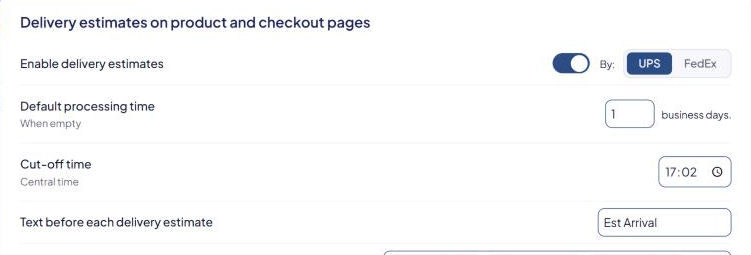
- Go to Settings → Delivery Estimates.
- Turn on Enable delivery estimates.
- Set Default processing time — how many business days you take to ship an order. It's used for any product without its own processing time.
- Set Cut-off time (Central time). Orders placed after it start processing the next business day.
- Set Text before each delivery estimate, for example
Arrives. - Under Delivery estimate for each method, choose what each method shows (see below).
- Select Save Settings.
Choose what each method shows
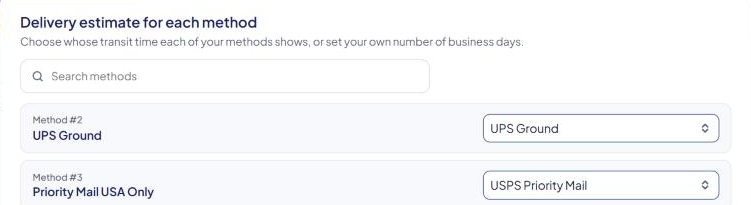
Delivery estimate for each method lists every shipping method ("Method #N" and its name). If you have more than 8, use Search methods. For each one, pick:
- Don't show an estimate — no date for this method.
- A carrier service, such as UPS Ground, FedEx 2 Day or USPS Priority Mail — the method shows that service's transit time.
- Custom setting — enter your own number of business days. Turn on Count Saturday if Saturdays count as delivery days for this method.
Match each method to the service it really ships with. A "Standard shipping" method that ships by UPS Ground should use UPS Ground.
Use Custom setting for methods without carrier transit times, such as local delivery, freight or flat-rate methods.
Closed dates and no-delivery dates
Depending on your add-on, you may also see:
- Closed dates — "Days you don't ship", such as holidays. Orders aren't processed on these days.
- No delivery dates — "Days carriers don't deliver". These dates only affect methods set to Custom setting.
Processing time per product
A product can have its own processing time in its Process time field, for items that take longer to make or source. See Add-on product fields.
Check that it works
Quote a cart in the Shipping Estimator. Each method with an estimate shows its note with the date. Then check your storefront checkout. See Test your rates with the Shipping Estimator.
Good to know
- All times are Central time, whatever your time zone. Convert your cut-off before you enter it.
- If you don't have a delivery add-on, a Saturday delivery rule cut-off setting is under Settings → Shipping instead.