
Connect a carrier account
Connect a carrier so ASM can quote your shipping methods with your own account. You'll do this once per carrier, in Settings → Carriers.
Before you begin
Before you start
- Your origin ZIP or postal code must be saved under Settings → General. Every carrier quote starts from it. See Set your origin address and default product weight.
- Your account details from the carrier. Usually an account number plus an API key, or a username and password for the carrier's rating service. The carrier's own article in this help center lists what you need.
- The carrier on your store. UPS, FedEx and USPS are always there. Any other carrier needs its add-on. If you don't see it in Settings → Carriers, add it on the Billing page (see Change your plan or extensions) or contact support.
You don't need any shipping rules to connect or test a carrier.
Steps
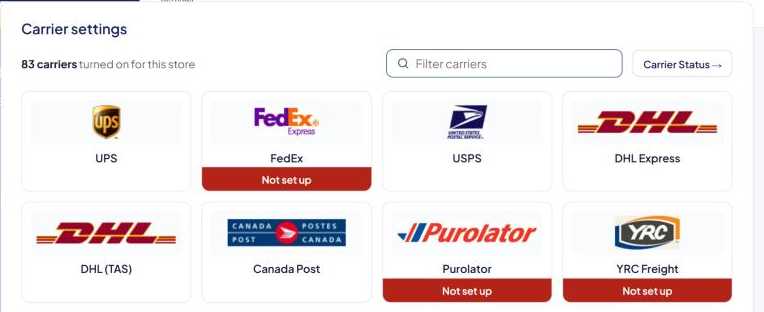
- Go to Settings → Carriers. You'll see "N carriers turned on for this store" and one tile per carrier. If you have more than 8, use Filter carriers to find one by name.
- Select the carrier's tile. Its card opens.
- Enter your details exactly as the carrier gave them to you.
- UPS and TForce Freight: select the connect button and sign in on the carrier's page instead of typing a password.
- FedEx and FedEx Freight: paste the API key and secret key from the FedEx Developer Portal.
- Set the carrier's options, such as packaging, freight class or extra services. If you're not sure, leave the defaults for now.
- Select Save Settings. Wait for Settings saved.
- Select Test connection at the bottom of the card (most carriers have it). See Test a carrier connection.
- Select All carriers above the carrier name to go back to the list.
Test connection only uses saved details. After you change anything on the card, the button turns off with "Save your changes first. The test uses your saved details." Save, then test.
Check that it works
- The tile no longer shows a label such as Not set up or Not connected. See Carrier labels explained.
- Test connection says "Connected." with a price.
- To see the carrier at checkout, link a shipping method to it (see Add a shipping method), then quote a cart in the Shipping Estimator. See Test your rates with the Shipping Estimator.
Change or remove saved details
Saved passwords, keys and secrets show as stars (********************).
- Leave the stars alone to keep the saved value.
- Clear the field and type a new value to replace it.
- Clear the field and save to remove it.
If saving doesn't work
Settings saves all groups at once. If your phone number or email under General isn't valid, the save stops and the page jumps to General. Fix it there, then save again. See Settings: where everything lives.