
Box mapping (points system)
With the Points System add-on, you tell ASM which boxes you ship in, and ASM packs each cart into those boxes before asking carriers for rates. Each product gets a number of points (how much room it takes) and each box has a Point Value (how much it holds).
Before you begin
How packing works
- Each product in the cart adds its points to a box.
- When the next product would overfill the biggest box, ASM starts a new box. (A box can also be split when it reaches the weight limit for the shipping method.)
- For each packed box, ASM picks the smallest box whose Point Value is at least the points packed into it.
- That box's Dimensions are sent to the carrier, and its Weight is added to the products' weight.
A simple way to set points is to use volume: a product's points = length × width × height, and a box's Point Value = its inside length × width × height. The calculator icon next to Point Value does that sum for you.
Before you start
- The Points System add-on on your store. With it, Settings → Packaging appears.
- Points system on. Under Settings → Shipping, turn on Use the points system instead of dimensions. See Global shipping settings explained.
- Points on your products. Each product needs a value in its Product points field. See Add-on product fields.
Steps
- Go to Settings → Packaging (section Box mapping).
- For each box you ship in, fill in a row:
- Group # — which group the box belongs to (see below). Use 1 if you only have one set of boxes.
- Title / Name — a name you'll recognize, such as "Small mailer".
- Dimensions (L × W × H) — the box size.
- Point Value — how many points the box holds. Select the calculator icon to fill it from the dimensions.
- Weight — the empty box's weight. It's added to every package packed in this box.
- Select Add Another Box for each extra box. Select X to remove a row.
- Select Save Settings.
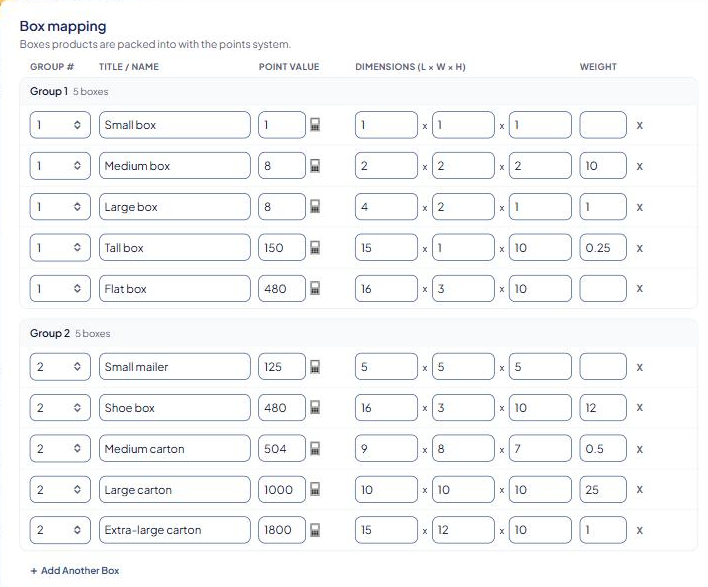
Boxes are shown grouped and sorted by group ("Group 1 · 3 boxes"). A row that repeats another box in the same group is flagged Duplicate. Remove one of the two.
Box groups
Groups keep products out of boxes they don't fit in, for example tubes for posters and cartons for everything else.
- A product's points can name a group as
group=points. For example,2=150means 150 points packed into group 2's boxes. - Points without a group (just
150) use group 1. - Products in different groups never share a box.
Example
Boxes in group 1:
- Small: 10 × 8 × 4, Point Value 320, Weight 0.3
- Medium: 14 × 12 × 8, Point Value 1344, Weight 0.6
- Large: 20 × 16 × 12, Point Value 3840, Weight 1.1
A cart with products worth 200 + 500 + 300 points has 1,000 points. That fits in one box, and the smallest box that holds 1,000 points is Medium. The carrier is quoted for a 14 × 12 × 8 box weighing the products' weight plus 0.6.
Check that it works
Quote a cart in the Shipping Estimator, then click a method to open its package table. You'll see each package's Points and box group, Size and Weight. See Read Shipping Estimator results.
Good to know
- Rules can check points. A shipping rule's points range compares the cart's total points (each product's points × quantity), not one box. See How shipping rules work.
- Make the biggest box big enough. Make sure your largest box in each group holds at least as many points as your largest product in that group.
- Box names can go on your orders. See Write package details to your orders.