
Free shipping countdown bar
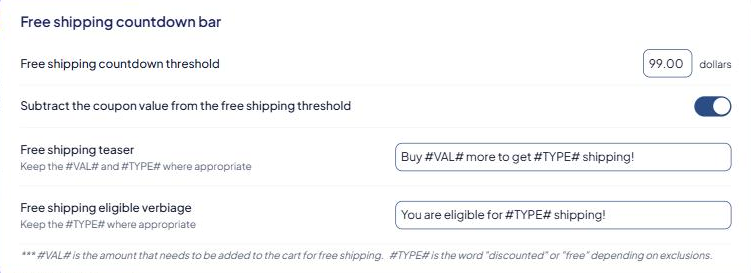
The Free Shipping Countdown add-on shows shoppers how much more they need to spend for free shipping, such as "Spend $12.50 more for free shipping!", and tells them when they've qualified.
Before you begin
Before you start
- The Free Shipping Countdown add-on on your store. With it, Settings → Countdown Bar appears. See Plans and extensions.
- Free shipping set up in your shipping rules. The bar only shows a message. The free shipping itself comes from your shipping methods' Free shipping over amount. See Offer free shipping over an order amount.
Use the same amount in the bar and in your shipping rules. If they differ, the bar promises free shipping that checkout doesn't give, or the other way round.
Steps
- Go to Settings → Countdown Bar.
- Enter the Free shipping countdown threshold in dollars, for example
75. - Choose Subtract the coupon value from the free shipping threshold (see below).
- Edit Free shipping teaser — shown before the shopper qualifies. The default is "Spend #VAL# more for #TYPE# shipping!"
- Edit Free shipping eligible verbiage — shown once they qualify. The default is "You are eligible for #TYPE# shipping!"
- Select Save Settings.
The placeholders
Keep these in your messages where you want them:
- #VAL# — the amount the shopper still needs to add. Only used in the teaser.
- #TYPE# — the word free, or discounted when some products in the cart don't qualify for free shipping.
Example: with a $75 threshold and $62.50 in the cart, "Spend #VAL# more for #TYPE# shipping!" shows as "Spend $12.50 more for FREE shipping!"
How the cart total is counted
- Products marked Global free ship exclusion don't count toward the threshold. When the cart has some of them, #TYPE# reads discounted, because those products are still charged.
- With Subtract the coupon value from the free shipping threshold on, coupons are taken off the cart total first.
The coupon switch here is the same setting as Subtract the coupon value before calculating min/max order value under Settings → Shipping, which also affects your rules' minimum and maximum order values. With the countdown bar on your store, change it here.
Check that it works
Add products to your storefront cart below the threshold, then above it. The message should change from the teaser to the eligible message. If the bar doesn't appear at all, contact support. We'll check it's installed on your storefront.