
Change your password, email or phone number
Update your ASM password, the email address we contact you on, or your phone number. All three live in Settings → General, under Company details.
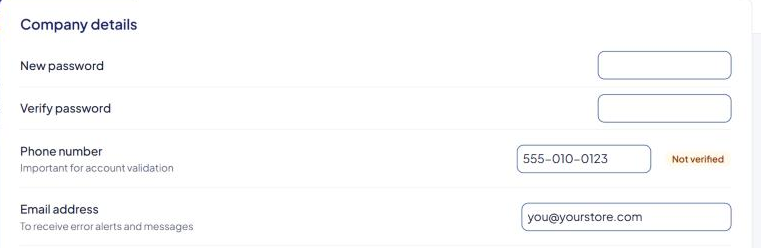
Change your password
- Go to Settings → General.
- Under Company details, enter your new password in New password.
- Enter it again in Verify password.
- Select Save Settings.
The password fields come pre-filled with a placeholder. If you don't touch them, your password stays as it is.
Messages you might see:
- "Please enter a new password" or "Please verify your new password" — one of the two fields is empty.
- "Passwords do not match. Please re-enter them." — the two entries differ. Type both again.
Choose a strong password you don't use anywhere else. Forgotten it and can't sign in? Use Reset a forgotten password instead.
Change your email address
- Go to Settings → General.
- Under Company details, change Email address.
- Select Save Settings.
This is where we send error alerts and account messages. It's also the address password-reset links go to, so keep it current.
Change your phone number
- Go to Settings → General.
- Under Company details, change Phone number. This number is important for account validation.
- Select Save Settings.
- A pop-up texts a code to the new number. Enter it to confirm.
The new number is saved only after the code matches. Until then, your old number stays on file. The badge next to the field shows Verified or Not verified.
Check that it works
Go to Activity Log. A Settings changed entry shows what you changed. Passwords never appear there, only the fact that one changed.