
Connect FedEx (REST API)
Connect FedEx with your own FedEx API keys so ASM can quote FedEx rates at checkout. FedEx retired its old connection, so every store that offers FedEx needs these keys, whether you use published or negotiated rates.
Before you begin
Before you start
You need three things from FedEx:
- Your FedEx account number.
- An API key and a secret key from the FedEx Developer Portal.
To get the keys:
- Sign in to the FedEx Developer Portal with your fedex.com login.
- Create an API project for your own business.
- Add FedEx's rates API to the project. If you'll use FedEx to check whether addresses are residential or commercial, add its address validation API too.
- Link the project to your FedEx account number.
- Copy the project's production API key and secret key. Test (sandbox) keys don't return real rates.
FedEx's own help explains each screen in the portal. Keep the keys somewhere safe: you'll paste them into ASM next.
Steps
- Go to Settings → Carriers and select FedEx.
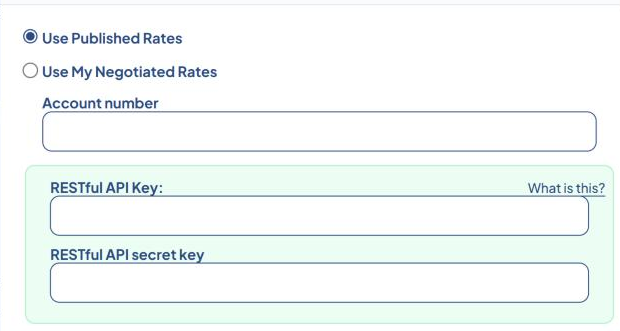
- Choose your rates:
- Use Published Rates — FedEx's standard prices.
- Use My Negotiated Rates — your account's discounted prices.
- Enter your Account number.
- Paste the API key into RESTful API Key.
- Paste the secret key into RESTful API secret key.
- Set the options (see below), then select Save Settings.
- Select Test connection.
When you save new keys, ASM asks FedEx for a connection straight away. If FedEx refuses the keys, nothing is shown at save time. Instead, the FedEx tile shows Check API keys and Test connection explains the problem. Always test after saving.
Options on the FedEx card
- Dropoff type — how packages reach FedEx: Regular Pickup, Request Courier, Drop Box, Business Service Center or Station.
- Packaging — usually Your Packaging. Choose a FedEx Envelope, Pak, Box or Tube only if that's what you ship in.
- FedEx One packaging — shown with the FedEx One Rate add-on. Pick the FedEx One Rate box you ship in.
- Hub ID — for FedEx Ground Economy (formerly SmartPost) only. Leave it at Not applicable otherwise.
- Use Parallel UPS Rates If FedEx's Server is Not Responsive — when FedEx isn't answering, ASM prices your FedEx methods with the matching UPS service instead. This needs a working UPS connection.
Hold at Location (with the HAL add-on): Enable HAL lets shoppers pick a nearby FedEx location. Set the HAL method name (which of your methods offers it), HAL number of results to show, HAL radius lookup and, except on Turbify, HAL results format.
Check that it works
A working connection shows something like "Connected. FedEx quoted $11.20 for a 3 lb box to Hewlett, NY." Then quote a cart in the Shipping Estimator to see your FedEx methods. See Test your rates with the Shipping Estimator.
Common problems
Tile says "Check API keys", or the test says "FedEx hasn't accepted this API key and secret key…"
- Check you copied the production key and secret, with no spaces at either end.
- Check the project in the FedEx Developer Portal is linked to the account number on the card.
- Paste both keys again (clear the stars first), save and test.
Test says "Your FedEx connection has expired because FedEx stopped accepting this API key and secret key."
- The keys were deleted or changed in the FedEx Developer Portal. Get the current keys from your project and save them again.
Banner "Connect FedEx with its new API"
- You have FedEx shipping methods but no working FedEx connection. Follow the steps above.
"FedEx Error - …" in the Shipping Estimator
- The text after the dash is FedEx's own message. See Carrier error messages and "FedEx Error" on every method.
Remove the FedEx connection
Clear both RESTful API Key and RESTful API secret key, then save. Your FedEx methods stop returning rates.