
Set dimensions, boxes and "ship alone"
Tell ASM a product's size, that it ships in its own box, or that it ships in several boxes. Carriers price large or bulky items by size, so this makes your rates match what you'll pay.
Before you begin
All three settings are in the Packing section of the Edit Product page (Products → search → select the product).
How ASM packs a product
- No dimensions, Ship alone off: ASM packs the product together with the rest of the order.
- Dimensions set: the product ships in its own box of that size. Saving dimensions switches Ship alone on for you.
- Ship alone on, no dimensions: the product ships in its own box, rated by its weight.
- Number of boxes 2 or more: the product ships as that many separate boxes, each with its own weight and (optionally) size.
Set dimensions
- In Dimensions, enter the length, width and height in inches in the three boxes.
- Typing
x,*, a space or a comma jumps to the next box. - You can paste a whole size such as
12 8 4or12x8x4into the first box. It fills all three.
- Typing
- Select Save Product.
Ship alone turns on automatically when you save dimensions.
Fill in all three numbers or none. If you fill only one or two, you see: Please enter the length, width and height for Dimensions, or leave all three empty.

A product with dimensions always ships alone. If you switch Ship alone off but leave the dimensions in place, it switches back on when you save. To let the product be packed with other items again, clear all three dimension boxes and switch Ship alone off.
Ship a product in its own box (without a size)
- Switch Ship alone on ("Packed in its own box; the rest of the order separately").
- Select Save Product.
Use this for items that can't share a box, but where you don't need size-based pricing.
Ship a product in several boxes
Use this for one product that always ships as more than one package, such as a table that comes in two cartons.
- In Number of boxes, enter the number of boxes, or use − and +.
- From 2 boxes, a card appears for each box. In each card, enter the box's Weight. Every box needs a weight.
- Optional: enter each box's Size (length, width, height in inches). Fill in a size for every box, or for none.
- Select Save Product.
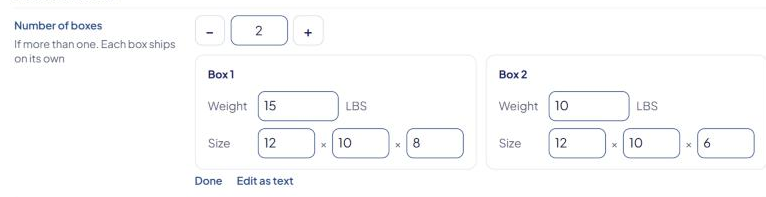
When a product has several boxes, ASM rates it at the sum of the box weights, not the product's weight from your store. Check the box weights add up to the real shipping weight.
You may see these messages:
- Please enter a weight for box N. Every box needs its own weight.
- Please enter a full size (length, width and height) for every box, or leave the sizes empty on all boxes.
Edit boxes as text
Select Edit as text under the box cards to see two plain fields:
- Box weights: each box's weight, separated by spaces, for example
20 15 8. - Box sizes: each box as LxWxH, separated by spaces, for example
12x8x4 10x6x4.
Select Use the box editor to go back to the cards. If the text isn't in this format, you see These values aren't in the box format yet… and must fix it before switching back.
Advanced: a box that grows with quantity (dynamic dimensions)
Some products stack in one box, and the box gets bigger with each extra unit. Dynamic dimensions describe this. Select Edit as text under Dimensions and enter:
LxWxH=increase|max per box
LxWxHis the box for one unit.increaseis what each extra unit adds. Use one number to add to the height only, orLxWxHto add to each side.max per boxis the most units in one box. Always include it.
Example: 20x15x15=0x1x2|5
| Units in the cart | Boxes ASM rates |
|---|---|
| 1 | one box, 20x15x15 |
| 2 | one box, 20x16x17 |
| 5 | one box, 20x19x23 |
| 12 | two boxes of 5 units (20x19x23 each) and one box of 2 units (20x16x17) |
The box weight is the product's weight times the units in that box.
Dynamic dimensions can only be edited as text. If you select Use the size boxes, you see This isn't a single LxWxH size…. That's expected: keep editing it as text.
Set these for many products at once
Use the dimensions, ship-alone, number-of-boxes, multi-box-weights and multi-box-dimensions columns in a CSV upload. See Bulk-update products with a CSV file and Product CSV columns.
On BigCommerce, ASM can also copy dimensions from your BigCommerce product data. See BigCommerce: take dimensions from product data.
Check that it works
In the Shipping Estimator, add the product to a test cart. Select a method in the results to see the packages ASM rated for it, with their weights and sizes. See Read Shipping Estimator results.