
Bulk-update products with a CSV file
Change shipping settings for many products at once: download your products as a CSV file, edit it in a spreadsheet app, and upload it again.
Before you begin
The CSV tools are on the Products page, under Import and export, for Shopify and BigCommerce stores. On Turbify, product settings come from your Turbify store instead (see How products get into ASM).
A blank cell clears the setting. A missing column keeps it.
- If a column is in your file and a product's cell is empty, ASM clears that setting for that product. Empty Yes/No cells become No.
- If a column is not in your file at all, ASM leaves that setting exactly as it is, for every product.
So before you upload, delete every column you don't mean to change. Keep only id and the columns you edited.
Steps
- Go to Products → Import and export.
- Select Download Database (CSV). You get a file with one row per product (one per variant on Shopify).
- Open the file in a spreadsheet app such as Excel, Numbers or Google Sheets.
- Keep the
idcolumn. It's the product's SKU in ASM, and it's how ASM finds each product. Don't change it. - Delete the columns you won't change. See the warning above.
- Delete the rows of products you won't change. Rows you leave in are rewritten with whatever is in their cells.
- Edit the cells. Use spaces between several values, for example
AK HIor2 3 7. For formats, see Product CSV columns. - Save the file as CSV. On a Mac, save it as Windows Comma Separated (.csv).
- Back in Import and export, choose your file and select Upload CSV.
- Wait for: The file was uploaded successfully! N products inserted. M products updated.
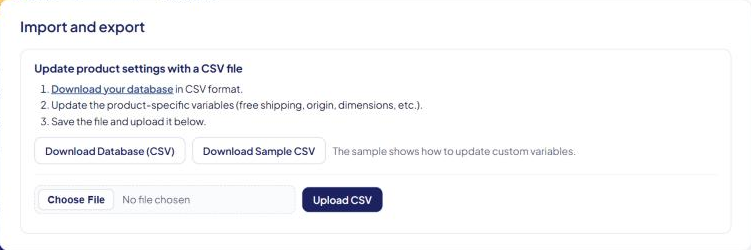
Download Sample CSV gives you an example file that shows the format of each column. Use it as a guide. Don't upload it as it is.
Worked example
You want TENT-XL to ship alone in a 48 × 20 × 12 inch box, ship free on method #1, never ship by method #4, and not ship to Alaska or Hawaii. Everything else about it should stay the same.
Upload a file with only these columns:
id,dimensions,ship-alone,free-shipping,free-ship-method,invalid-ship-methods,exclude-states
TENT-XL,48 20 12,Yes,Yes,1,4,AK HI
Result:
- Dimensions 48x20x12, Ship alone on.
- Free on method #1, method #4 blocked, no shipping to AK or HI.
- Flat rates, markup, origin, boxes and every other setting keep their current values, because those columns aren't in the file.
If the file had also had an empty markup column, TENT-XL's markup would have been cleared.
Good to know
- Last save wins. Uploading a CSV overwrites changes made on the Products page, and saving a product on the Products page overwrites what a CSV set.
- Dimensions and Ship alone. If your file has both a
dimensionsand aship-alonecolumn, every product with dimensions is set to ship alone, whatever itsship-alonecell says. - Only existing products are updated. On Shopify and BigCommerce, a row whose
iddoesn't match a product in ASM is skipped. Products come from your store, never from the CSV file. - The "updated" count includes skipped rows. A high count doesn't prove every SKU matched. Spot-check a few products afterwards.
- Weight, name and price aren't in the file. They come from your store. Change them there.
- Column order doesn't matter, and column names aren't case-sensitive. Columns ASM doesn't recognize are ignored, so you can add your own notes column.
- Watch out for spreadsheet apps. They can drop leading zeros (
02134becomes2134) and turn long numeric SKUs into numbers like1.23457E+11. Check theidandorigin-zipcolumns before you save. - Apostrophes are expected. ZIP codes starting with 0 and ranges like
7-10are exported with an apostrophe in front ('02134,'7-10). Leave them. ASM removes them on upload. - A changed SKU is a new product. If you change a SKU in your store, ASM sees a new product with empty settings. Update the new SKU's row.
- Each upload is recorded in the Activity Log as "Product CSV imported: N added, M updated".
If support has set your Shopify store to take product settings from product tags, the Import and export section isn't shown. See Shopify: control settings with product tags.
Other store types
If your store isn't on Shopify or BigCommerce and you have the CSV tools, the upload asks how to handle the file:
- Add the uploaded file to my existing database: updates matching products and adds new ones.
- Replace my entire database with the uploaded file: also deletes every product not in the file. Use it only with a complete file.
Your file also has ship-weight, taxable, code, name, price and sale-price columns. See Product CSV columns.
Check that it works
- Open two or three of the products on the Products page and check their settings.
- Run a test cart in the Shipping Estimator.
If settings went missing after an upload, see My product settings changed or disappeared.