
Switch to LTL freight for heavy orders
Offer a parcel service, such as UPS Ground, for normal orders and an LTL freight service for heavy ones. You do this with two methods whose weight ranges don't overlap.
Before you begin
In this example, carts up to 150 lb get UPS Ground. Heavier carts get "Freight Shipping".
Before you start
Connect your freight carrier in Settings → Carriers. See LTL freight in ASM: classes, accessorials and billing terms and the setup article for your carrier.
Steps
- Set the parcel method's limit. Select Edit on your UPS Ground rule. In When this rule applies, set Weight to
0to150. Leave Split the package if over unticked. Select Save Rule. - Add the freight method. Select Add a shipping rule.
- Method name:
Freight Shipping. - In When this rule applies, set Weight from
150.01, and leave the second box empty. - Fill in Where it ships.
- In How it's priced, select Real-time, and choose your freight carrier's service in Assigned method.
- Select Save Rule.
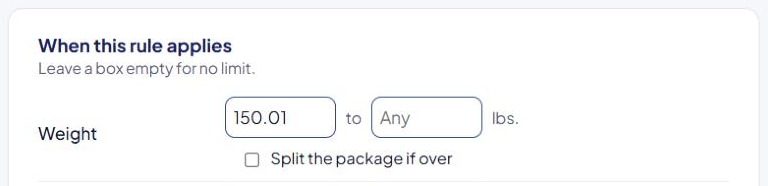
Weight ranges include both ends. A rule set to 0 to 150 matches a 150 lb cart, so start the next rule at 150.01, not 150.
How the weight is counted
- It's the total weight of the products being priced for that method.
- Products that ship free or at a flat rate on the method are left out, unless you turn on Count free/flat shipping weights when free/flat shipping is applied in Settings. See Global shipping settings explained.
Variations
- Keep parcel for heavy carts too. Instead of limiting UPS Ground, tick Split the package if over. ASM splits heavy carts into more packages of up to 150 lb. See Limit a method by weight or order value.
- Freight for certain products only. Use a Show trigger on the freight method, for example SKUs in the cart. See Hide a method when certain products are in the cart.
Check that it works
In the Shipping Estimator, test a 140 lb cart and a 160 lb cart. The first should show UPS Ground only; the second should show Freight Shipping only. See Test your rates with the Shipping Estimator.