
Limit a method by weight or order value
Make a rule apply only to carts in a weight range or an order value range. For example: "First Class" for carts up to 1 lb, or "Express" only for orders under $500.
Before you begin
Steps
- Go to Shipping Rules and select Edit on the rule (or Add a shipping rule).
- In the When this rule applies card, fill in the ranges you need:
- Weight — from … to …, in your store's weight unit.
- Order value — from … to …, in your currency.
- Leave a box empty for "no limit".
- Select Save Rule.
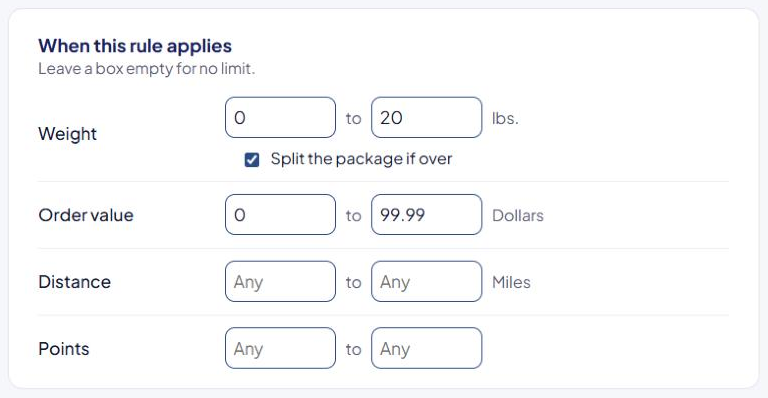
Both ends of a range are included. Weight 0 to 1 matches a 1 lb cart; Order value from 50 matches an order of exactly $50.00.
Weight
- ASM uses the total weight of the products being priced for this method.
- Products that ship free or at a flat rate on this method are left out, unless Count free/flat shipping weights when free/flat shipping is applied is on in Settings. See Global shipping settings explained.
- The maximum weight is also the most one package can weigh when ASM packs the cart for this rule.
Split heavy carts instead of hiding the method
By default, a cart heavier than the maximum doesn't match the rule. Tick Split the package if over to keep the method and split the cart into more packages of up to the maximum weight instead.
- It needs a maximum weight. Without one, the box is unticked when you save.
- It can't be used with a minimum weight. ASM shows "A package cannot be split when a minimum weight is set…" if you try.
Example: Weight up to 70 with Split the package if over ticked. A 160 lb cart is rated as three packages of up to 70 lb.
Order value
- ASM compares the value of the products in the cart.
- If Subtract the coupon value before calculating min/max order value is on in Settings, coupon discounts are taken off first.
Examples
| Goal | Set |
|---|---|
| Light carts only (up to 1 lb) | Weight 0 to 1 |
| Carts over 1 lb | Weight 1.01 to (empty) |
| Orders under $500 | Order value (empty) to 499.99 |
| Orders of $75 or more | Order value 75 to (empty) |
Other ranges
If your store has the add-ons, you'll also see:
- Distance — miles or kilometers from your origin to the shopper.
- Points — see Points in shipping rules.
Check that it works
In the Shipping Estimator, test carts just inside and just outside your range. See Test your rates with the Shipping Estimator.