
Rename a method or add a description
Change what shoppers see at checkout: the method's name, or the short description shown under it.
Before you begin
Rename a method
- Go to Shipping Rules.
- Select Edit on any rule of the method. All rules of a method share one number, for example "#2".
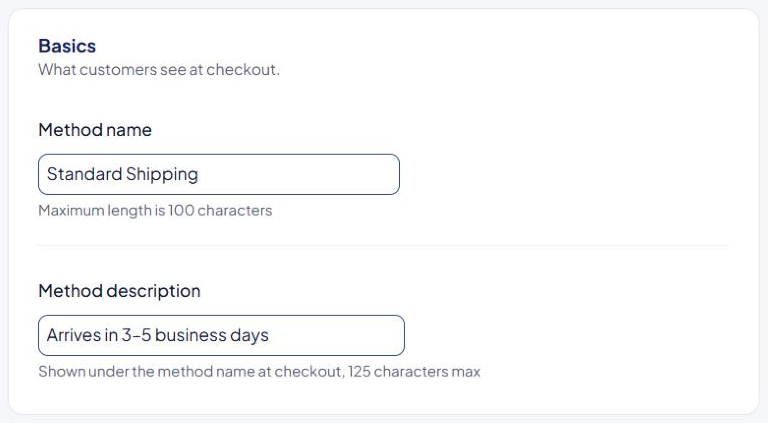
- In Basics, change Method name.
- Select Save Rule.
ASM renames every rule with that method number. Product settings and Advanced triggers that point at the method keep working, because they use its number, not its name.
Turbify: ASM matches your Turbify shipping methods by name. Rename the method in your Turbify store too, so the two names stay identical.
Don't rename a method to the name of another method that already exists. Only the rule you're editing moves into that other method, and that method's shared settings (free shipping, minimum and maximum charge, Advanced triggers) are replaced by the ones on this rule. The other rules of the old method keep the old name.
Add or change a description
The Method description field is in the Basics card on Shopify and BigCommerce stores.
- Select Edit on any rule of the method.
- Type the text in Method description.
- Select Save Rule.
The description is shared by every rule of the method.
| Platform | Limits |
|---|---|
| Shopify | HTML tags are removed. An & is saved as "and". |
| BigCommerce | Up to 125 characters. |
Delivery estimate text
If you use a delivery-estimate add-on, the Basics card can also show Delivery estimate text. It overrides your global delivery estimate text for this method only. See Show delivery dates at checkout.
Check that it works
Run a test cart in the Shipping Estimator, or open your store's checkout. The method should show the new name or description. See Test your rates with the Shipping Estimator.