
Hide a method when another method is offered
Hide one method whenever another one shows. The classic case: hide "Standard Shipping" when "Free Shipping" is available, so shoppers don't see both.
Before you begin
In this example, Standard Shipping is method #1 and Free Shipping is method #4.
Steps
- Go to Shipping Rules and select Edit on a rule of Standard Shipping (#1).
- Scroll to Advanced triggers and find Another method is offered.
- Turn its switch on.
- Select Hide.
- In the method box, add Free Shipping.
- Select Save Rule.
The Standard Shipping card now says "Hide if #4 applies". The trigger is shared by every rule of Standard Shipping.
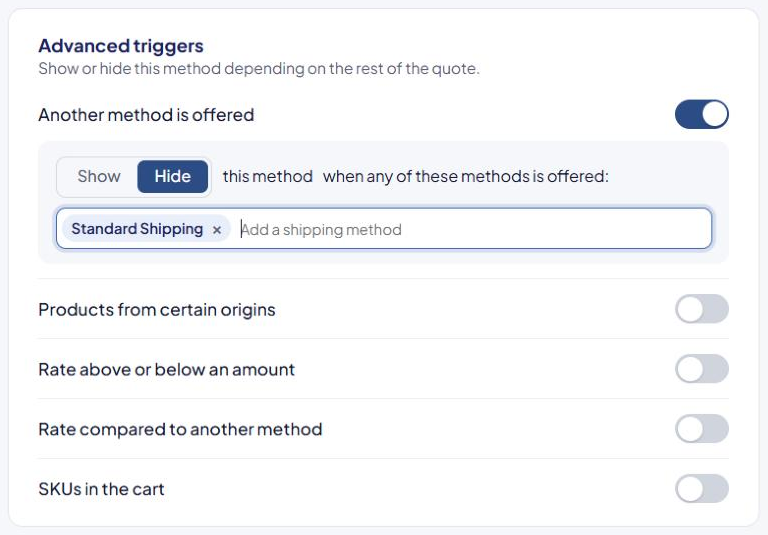
Show instead of Hide
Select Show to offer a method only when another one is offered.
| You choose | With one method listed | With several methods listed |
|---|---|---|
| Hide | Hidden when that method is offered | Hidden when any of them is offered |
| Show | Shown only when that method is offered | Shown only when all of them are offered |
The sentence on screen says "when any of these methods is offered" for both choices. With Show and several methods, all of them must be offered.
Things to know
- Keep it one level deep. Don't point this trigger at a method that has its own Another method is offered or Rate compared to another method trigger. ASM may not see that method in time, and the result is unpredictable.
- Deleting a rule of Free Shipping can clear this trigger and switch the Standard Shipping rule off. After deleting, check the Off filter on the Shipping Rules list.
Check that it works
In the Shipping Estimator, test one cart that gets Free Shipping and one that doesn't. Standard Shipping should show only on the second. See Test your rates with the Shipping Estimator.