
Set up sales tax rates
Who this is for: mainly Turbify (Yahoo) stores, where ASM calculates the sales tax at checkout, and stores that use a tax provider through ASM. Shopify and BigCommerce stores normally collect tax through their platform and don't see the Taxes page.
Before you begin
Add one tax rule for each state, province, country or ZIP code area where you collect sales tax. ASM picks the rule that matches the shopper's address and adds the tax at checkout.
Steps
- In the sidebar, select Taxes. The Tax Rates page opens.
- Select Add Another Tax Rule. A new row appears.
- In State / Province / Country, pick where the rule applies. The list is grouped into United States, Canada and International.
- To cover the whole state or country, leave From Zip and To Zip as (any). To cover part of it, see Tax only some ZIP codes below.
- In Tax Rate, enter the tax on products as a percentage. For 6.5%, enter
6.5. - In Tax Shipping, enter the tax on the shipping charge as a percentage. Enter
0if shipping isn't taxed in that state. - Repeat for every place you collect tax.
- Select Save Settings. You see Tax rates saved.
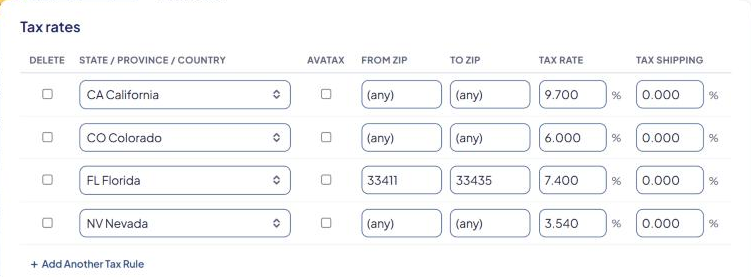
To delete a saved rule, tick its Delete box and select Save Settings. To drop a row you haven't saved yet, select its ×.
How the tax is worked out
Tax = (taxable products in the cart × Tax Rate) + (shipping charge × Tax Shipping).
Products marked as not taxable in your store aren't taxed.
Example: a Florida rule with Tax Rate 6 and Tax Shipping 0. A cart with $100 of taxable products and $12 shipping gets $6.00 tax.
Tax only some ZIP codes
Use From Zip and To Zip for areas with a different rate, such as a city or county.
| You want | From Zip | To Zip |
|---|---|---|
| The whole state | (any) | (any) |
| ZIP codes 33101 to 33199 | 33101 |
33199 |
| All ZIP codes starting with 331 | 331 |
331 |
| ZIP codes starting with 330 to 334 | 330 |
334 |
For a range of ZIP codes, use full 5-digit ZIP codes in both boxes. For a prefix range, use 3 digits in both boxes.
When several rules match an address, ASM uses the most specific one:
- A rule whose 5-digit ZIP range contains the shopper's ZIP code.
- Otherwise, a rule whose 3-digit prefix range contains the first three digits of the ZIP code.
- Otherwise, the state-wide rule with (any) in both boxes.
Example:
| State | From Zip | To Zip | Tax Rate | Tax Shipping |
|---|---|---|---|---|
| FL | (any) | (any) | 6 | 0 |
| FL | 33101 | 33199 | 7 | 7 |
A shopper in ZIP 33130 pays 7% on products and on shipping. A shopper in ZIP 32801 pays 6% on products only.
Don't let two rules of the same kind overlap (for example two 5-digit ranges that both contain 33130). Only one of them is used, and it may not be the one you expect.
For a country outside the US and Canada, add one rule with (any) in both ZIP boxes.
Many rules
When you have more than 100 rules, the page splits them into pages and shows a filter:
- Pick a state in All states, or type a ZIP code or 3-digit prefix in Zip or 3-digit prefix, and select Filter.
- Select Clear filter to see everything again.
Save Settings saves only the rules on the page you're looking at. Save before you move to another page.
If you have a long list of rates to enter, contact support: we can help you import them.
Check that it works
Run the Shipping Estimator with an address in a state you set up. On Turbify stores, the results show Tax: with the amount. Try one address inside each ZIP range and one outside.
Related
- Connect AvaTax, TaxJar or TaxCloud to have a tax service calculate rates for you.